

Let’s be honest: Power BI has always been a bit of a „one-way street.” It’s amazing at showing you that your margins are dropping, but if you want to actually do something about it—like leave a comment or a strategic note—you’re usually stuck jumping between Excel, SharePoint, or some clunky Power Apps integration. 🙄
But Fabric & Python UDFs just changed the rules of the game.
I’ve been playing around with a way to turn a standard dashboard into a full-blown Data App using a „closed-loop” architecture. The secret sauce? Combining a Fabric SQL Database with Python User-Defined Functions (UDFs). No third-party plugins, no extra licenses—just pure, native automation. 🚀
Grab the file and the guide today to follow along with me and master these through hands-on practice.
Here is how you can build it yourself.
Table of Contents
🏗️ The Architecture: Why this actually works
Instead of just reading data, we’re creating a feedback loop. Think of it as a three-step dance:
- The Vault 🏦: A Fabric SQL Database where we store our inputs.
- The Bridge 🌉: A Python UDF that takes your text from Power BI and „pushes” it into the SQL table.
- The Loop 🔄: DirectQuery that refreshes your visual the second you hit „Save.”
Step 1: Prepare your Storage (Fabric SQL DB) 💾
First, we need a place to „park” those comments. We’ll create a simple table in a Fabric SQL Database. I like to include an audit trail (CreatedAt, CreatedBy) because, let’s face it, someone will eventually ask „who wrote this?”. 🕵️♂️
SQL
-- Simple writeback table for our Action Plans
CREATE TABLE [dbo].[CustomerActionPlans] (
    ActionPlanID INT IDENTITY(1,1) PRIMARY KEY,
    CustomerID NVARCHAR(50) NOT NULL,
    ActionPlanText NVARCHAR(500) NOT NULL,
    CreatedAt DATETIME2 DEFAULT CURRENT_TIMESTAMP,
    CreatedBy NVARCHAR(100) DEFAULT SYSTEM_USER
);
Step 2: The Magic Trick – Fabric & Python UDFs 🐍
This is my favorite part. Usually, writing to a database from Power BI is a pain. But with Fabric Python UDFs, we can write a tiny script that handles the logic, validates the input (e.g., stops people from writing an essay in a comment box), and executes the INSERT command.
Python
import fabric.functions as fn
udf = fn.UserDataFunctions()

@udf.connection(argName="sqlDB", alias="ControllingData")
@udf.function()
def write_customer_action_plan(sqlDB: fn.FabricSqlConnection, customerId: str, actionPlanText: str) -> str:
    if len(actionPlanText) > 500 or len(actionPlanText) == 0:
        raise fn.UserThrownError("Komentarz jest pusty lub za długi (max 500 znaków).", {"Text:": actionPlanText})

    connection = sqlDB.connect()
    cursor = connection.cursor()
    cursor.execute("INSERT INTO [dbo].[CustomerActionPlans] (CustomerID, ActionPlanText) VALUES (?, ?)", (customerId, actionPlanText))
    connection.commit()
    cursor.close()
    connection.close()
    return f"Dodano komentarz dla klienta {customerId}."
Step 3: Wiring it up in Power BI 🔌
Now, how do we trigger this?
- DirectQuery is key: Import your new
CustomerActionPlanstable back into Power BI using DirectQuery. This is crucial—you want to see your comment appear instantly after you save it. - DAX Magic: When you call the Python function, Power BI might get confused with data types. I always wrap my slicers/inputs in
CONVERT(..., STRING)to make sure the UDF gets exactly what it expects. - The Button: Use a button visual to trigger the refresh.
As shown in the screenshot below, configure your button’s Action pane with the following settings to connect your layout to the Fabric UDF:
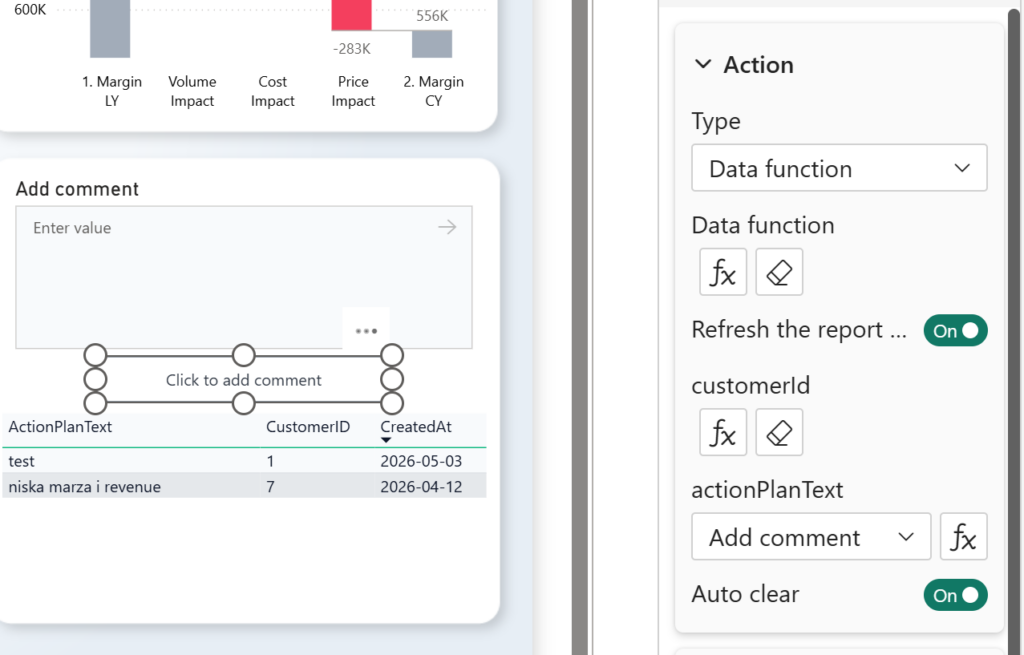
- Type: Set to Data function.
- Data function: Select your UDF connected to the Fabric/SQL database.
- Refresh the report: Turn On so the table immediately displays the new comment after submission.
- customerId: Click $f_x$ to dynamically pass the selected ID from your report context.
- actionPlanText: Select your input box („Add comment”) from the dropdown to capture the user’s typed text.
- Auto clear: Turn On to instantly empty the text box after the comment is saved.
🎯 Real-Life Example: Strategic FP&A
Imagine you’re an FP&A controller. You see a client with huge YoY % Revenue but negative margins (the classic „Empty Calorie” client). 📉
Instead of taking a screenshot and emailing it to a sales rep, you just select the client in the report, type „Renegotiate contract by +5% in Q3”, and hit save. Boom. It’s in the database, it’s on the dashboard, and it’s ready for the next management meeting.
Why bother? 💡
The bottom line is: Closed-loop analytics is the future. We’re moving away from „static pictures of data” towards „interactive tools for action.”
Using Microsoft Fabric Writeback isn’t just about saving time—it’s about making sure that the insights you find actually lead to decisions.
What do you think? Are you still using Excel for comments, or are you ready to go native with Fabric? Let me know in the comments! 👇