
Keywords: Power Query, Power BI, M language, Power Query tips, Power BI automation, Power Query best practices, M code, data transformation, ETL Power BI.
If you work with multiple Excel files and repeatable sheet layouts, you’ve probably wondered how to combine multiple Excel files into one table in Power BI efficiently. Manually importing each workbook and sheet is slow, error-prone, and impossible to maintain at scale.
Good news: with one simple Power Query script, you can automatically load all workbooks, all sheets, and all identical layouts into a single unified table — no matter how many files your folder contains.
This is the crucial part of the tutorial — your production-ready script for combining multiple Excel files into one table in Power BI:
let
    Source = Folder.Files("C:\Users\\Downloads\Nowy folder (2)"),
    ExcelFiles = Table.SelectRows(Source, each [Extension] = ".xlsx" or [Extension] = ".xls"),
    AddContent = ExcelFiles[Content],
    ExpandWorkbooks = Table.AddColumn(ExcelFiles, "Transform", each Excel.Workbook([Content], true)),
    ExpandSheets = Table.ExpandTableColumn(ExpandWorkbooks, "Transform", {"Name", "Data"}, {"SheetName","Data"}),
    FilteredSheets = Table.SelectRows(ExpandSheets, each not Text.StartsWith([SheetName], "_xlnm")),
    ExpandData = Table.ExpandTableColumn(FilteredSheets, "Data", Table.ColumnNames(ExpandSheets[Data]{0})),
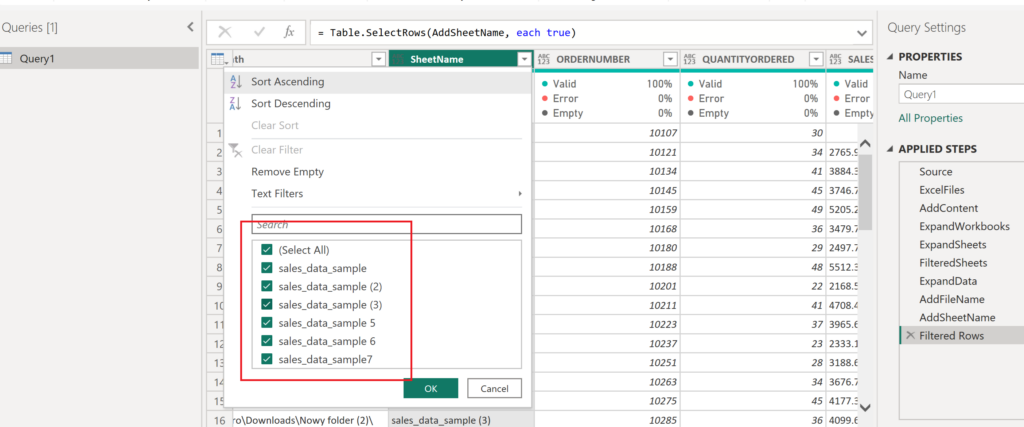
    AddFileName = Table.AddColumn(ExpandData, "FileName", each [Name]),
    AddSheetName = Table.AddColumn(AddFileName, "Sheet", each [SheetName]),
    #"Filtered Rows" = Table.SelectRows(AddSheetName, each true)
in
    #"Filtered Rows"
Most users know how to combine files from a folder, but very few realize that Power Query can automatically expand every sheet inside every workbook — in a single step.
And that’s exactly what this line does.
ExpandSheets = Table.ExpandTableColumn(ExpandWorkbooks, "Transform", {"Name", "Data"}, {"SheetName","Data"}),
Table of Contents
🔍 What Really Happens Behind This Line? (Deep Explanation)
1. Power Query creates a column called “Transform”
Earlier, we used:
Excel.Workbook([Content], true)
This returns a full table containing all sheets, tables, and named ranges from each workbook.
That table includes columns like:
- Name → sheet name
- Kind → Sheet / Table / Range
- Data → actual sheet content
Each row in this sub-table represents one sheet.
2. ExpandTableColumn reads every sheet inside every file
When we write:
Table.ExpandTableColumn(..., {"Name", "Data"}, {"SheetName","Data"})
Power Query:
- Firstly, Looks at the sub-table returned by Excel.Workbook
- Secondly, Extracts two fields from every row:
"Name"→ becomes SheetName"Data"→ contains the sheet’s content
- Creates new rows for each sheet in every file
- Keeps the entire sheet data as nested tables ready to expand
This means:
➡️ One row per sheet
➡️ Across all files
➡️ Automatically
➡️ No manual sheet selection needed
This is where the real magic happens.
🚀 Why This Step Is a Game-Changer
✔️ It scales infinitely
It doesn’t matter whether you have 5 workbooks with 3 sheets each or 500 workbooks with 20 sheets each.
Power Query will pick them all up.
✔️ It works even if new sheets are added
As long as layouts match, you don’t need to edit the code.
✔️ It avoids common mistakes
Many people use Sheet = „Sheet1” filters manually — this breaks as soon as a sheet has a different name.
This method does not depend on sheet names.
✔️ It allows metadata tracking
Sheet names become part of your final table, which is essential for auditing and debugging.
💡 Pro Tip (that most tutorials never mention)
If you want to load only specific types of sheets, you can filter by Kind = "Sheet" before expanding:
FilteredSheets = Table.SelectRows(ExpandWorkbooks, each [Kind] = "Sheet"),
This prevents Power Query from importing:
- Named ranges
- Tables
- Hidden system definitions
Even cleaner data, even less post-processing.
🏆 Summary: Why ExpandSheets Is the Heart of the Whole Solution
In conclusion , the line:
ExpandSheets = Table.ExpandTableColumn(...)
is not just a technical step — it is the core engine that makes folder-based consolidation possible. Without it, you would need to:
- Firstly, import each sheet manually
- Secondly, write repetitive queries
- Maintain unstable naming logic
- Finally, rebuild your model every time files change
With it, you get a fully dynamic, scalable, maintenance-free workflow.
🧠 Related Reads
Click the link below the icon to learn how to remove duplicate items and keep only those with the most recent status.
https://www.instagram.com/reel/C-N03baItkh/?igsh=dTc1NWMwNjFsd2l3
👾 Problem: Duplicate entries with old statuses.
🎯 Solution: Keep only the latest and greatest!