

In this post, I’ll guide you through a simple and efficient way to append Excel sheets with different layouts directly in Power BI. For best practice, I recommend downloading the „RawData” file provided and following along with each step. By doing this, you’ll be able to apply the instructions effectively and see the results firsthand.
The structure of the file is as shown in the screenshots below. The first few columns in each sheet are the same, while the remaining columns differ – these represent the names of candidates in an election.
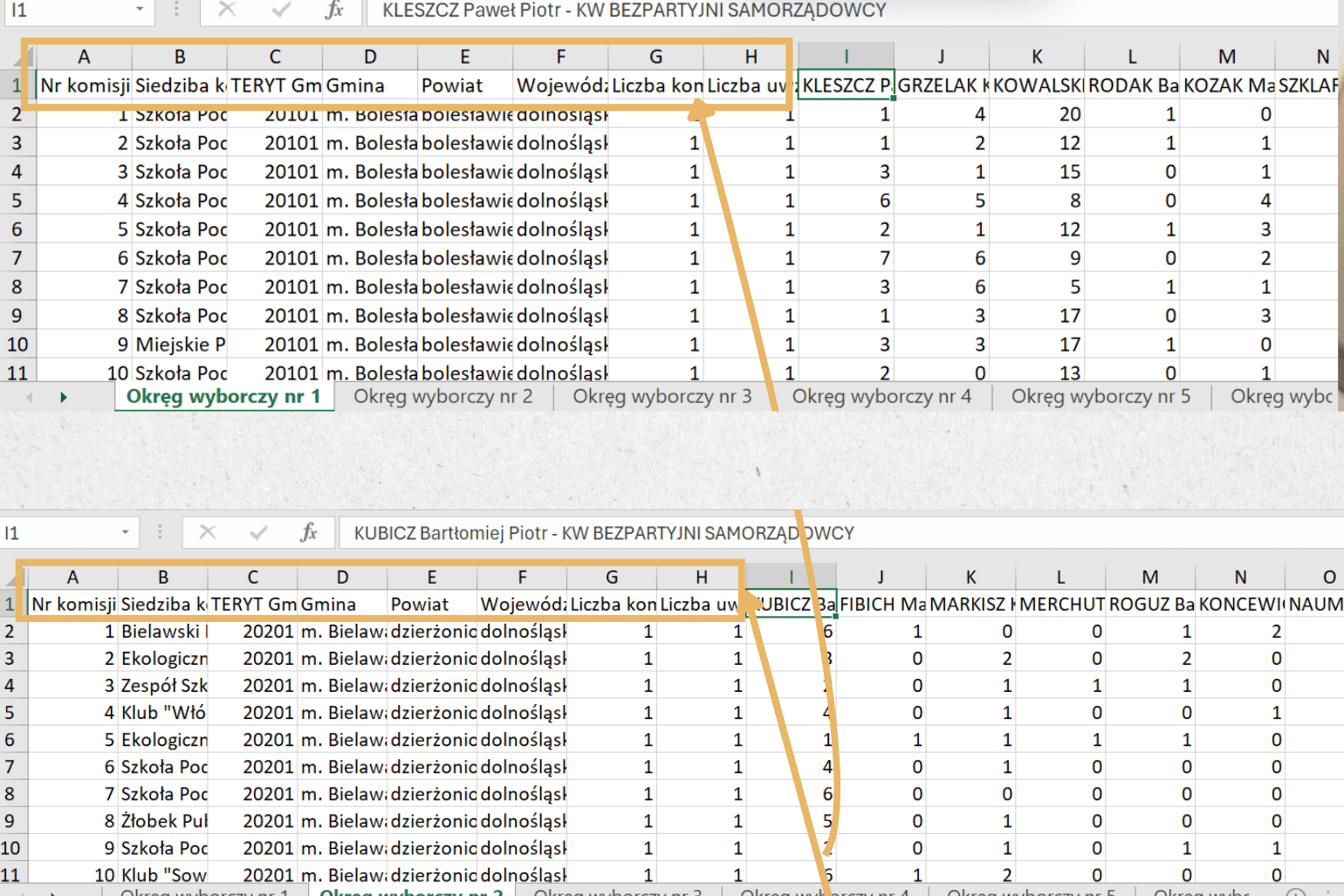
- Load any tab from Excel to Power BI ->[RawData]
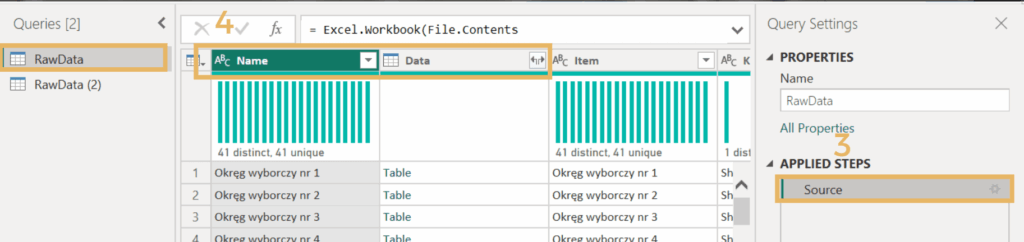
- Duplicate the loaded sheet.-> [RawData (2)]
- From “RawData”, remove all steps except “Source”.
- Leave only the first two columns and delete the rest in the “RawData”.
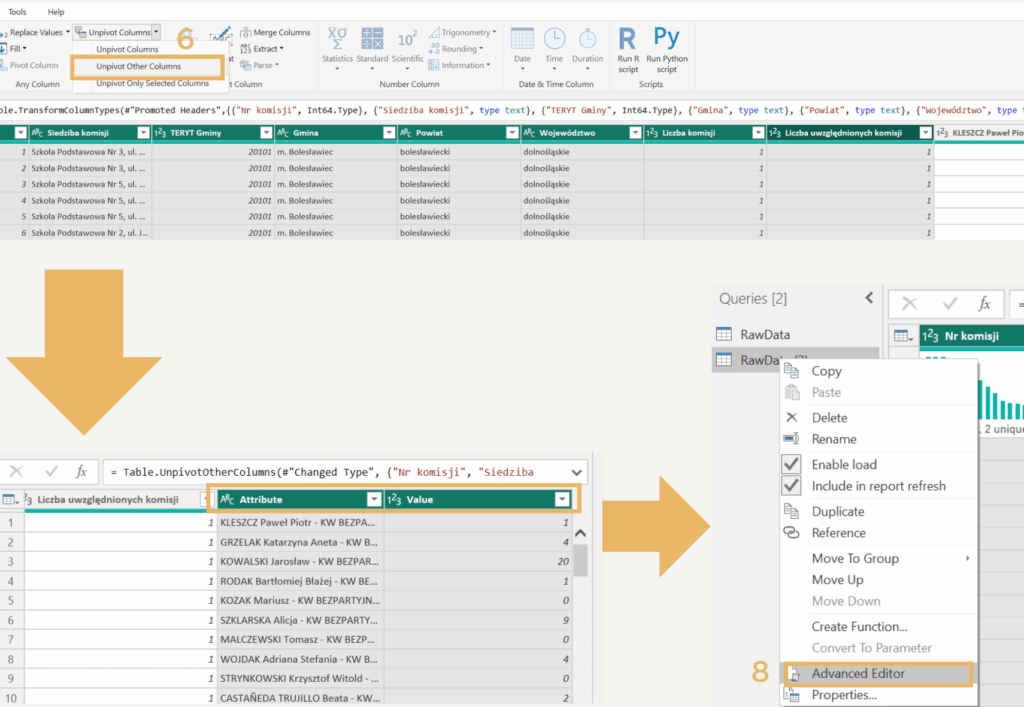
- In the “RawData (2)”, delete the last step “Changed Type”.
- Select 8 first columns and click-> Unpivot Other Columns.
- We should get two columns called: Attribute and Value.
- Go to the Advanced Editor tab.
- In the Advanced Editor tab replace the first lines of code with the new one.
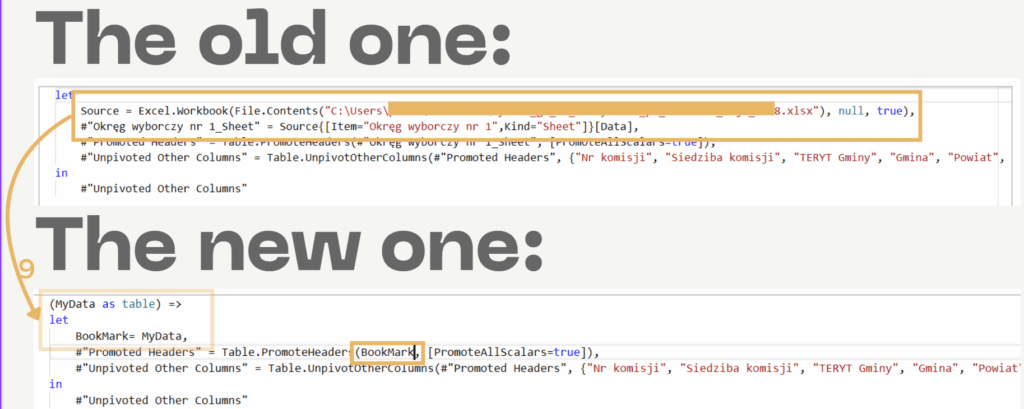
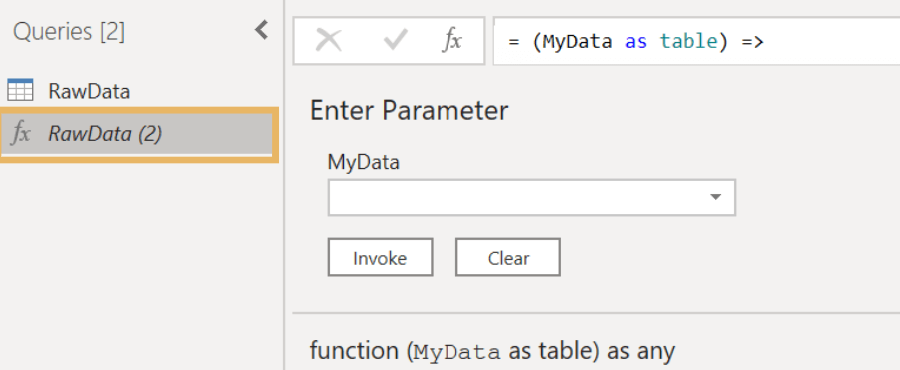
The table should convert into function. –>
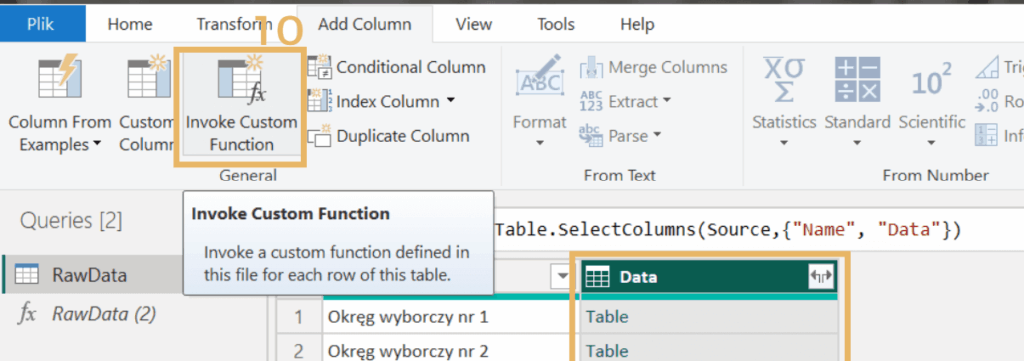
- Return to the “RawData” and select the „Data” column, then go to the Add Column tab and select Invoke Custom Function.
- Select the created function from the list.
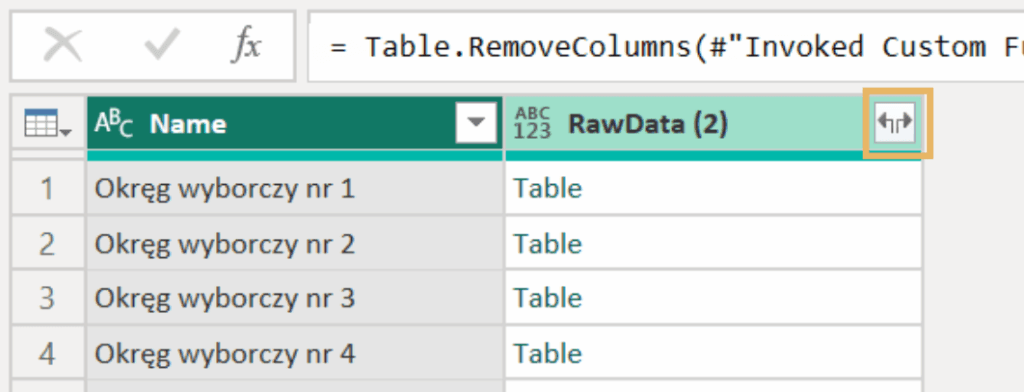
- Then delete the „Data” column and expand the column that was created after the transformation -> click on the arrows.
- Load all columns.
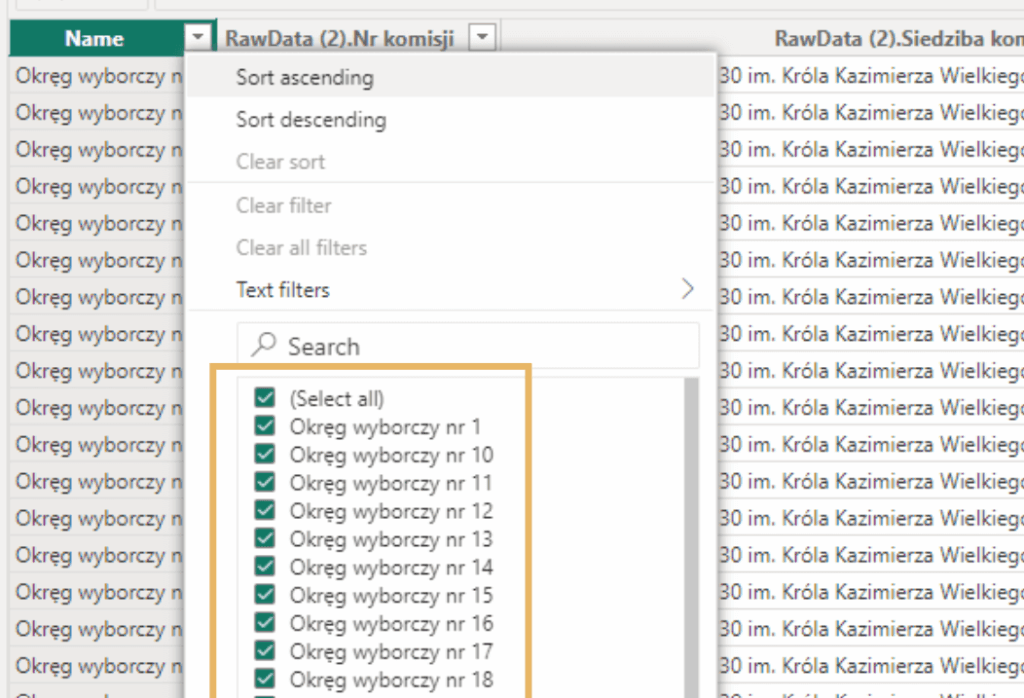
Finally, we get all in one table!
In this post, you’ll discover an easy, no-stress way to append Excel sheets with different layouts straight into Power BI! 📊✨ Just grab the “RawData” file 📥 and follow along to make sure you don’t miss a step. Trust me, seeing everything come together so smoothly will have you dancing with joy 💃🎉!