

So you’ve discovered Power Query—welcome!
🌟 It’s like the Swiss Army knife for data: importing, cleaning, and transforming at the click of a button.
And at first, it’s amazing! But with that first taste of power, new users get excited. They start connecting to folders and stacking transformations like a pro.
Soon, chaos ensues.
🙈🙈🙈
If you’re not careful, you’ll end up with a messy web of queries that’s impossible to pass on, let alone move to a new file location.
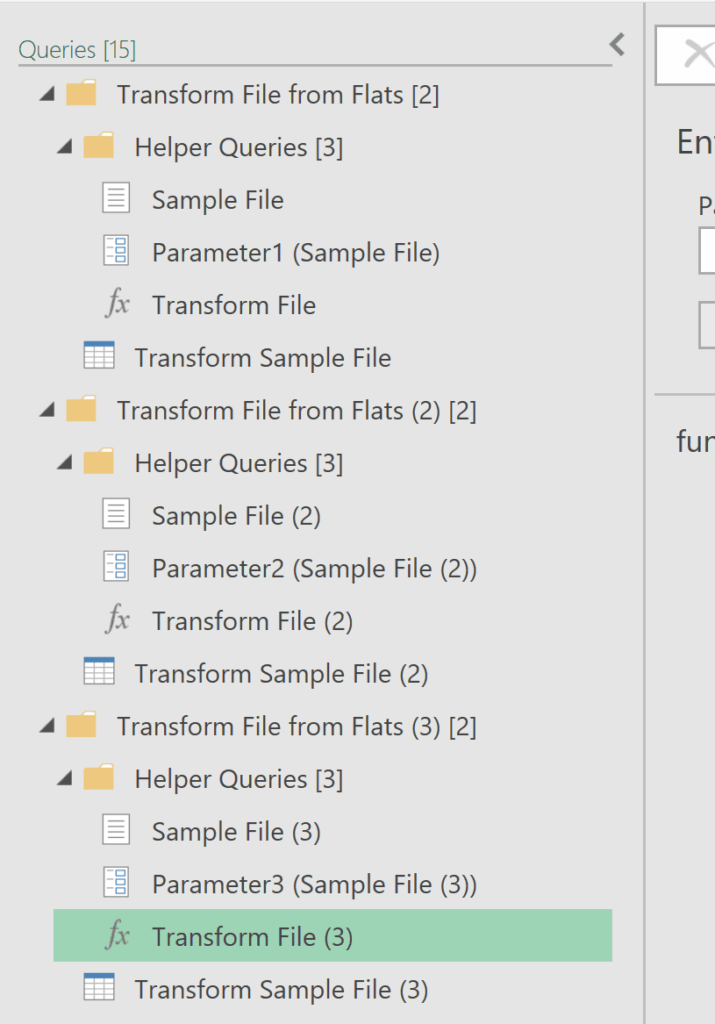
Let’s look at some common pitfalls—and more importantly, how to avoid them. You’ll keep your Power Query setup clear, organized, and (almost!) foolproof. 👌
Instead of using those basic functions that can make your data pipeline feel like a jigsaw puzzle 🧩, there’s a neat trick to skip unnecessary files and jump straight to the good stuff.
🔧 The trick? A code snippet in Power Query…. 🎯
Here’s a super quick trick that will make you wonder how you ever managed without it. 🚀A
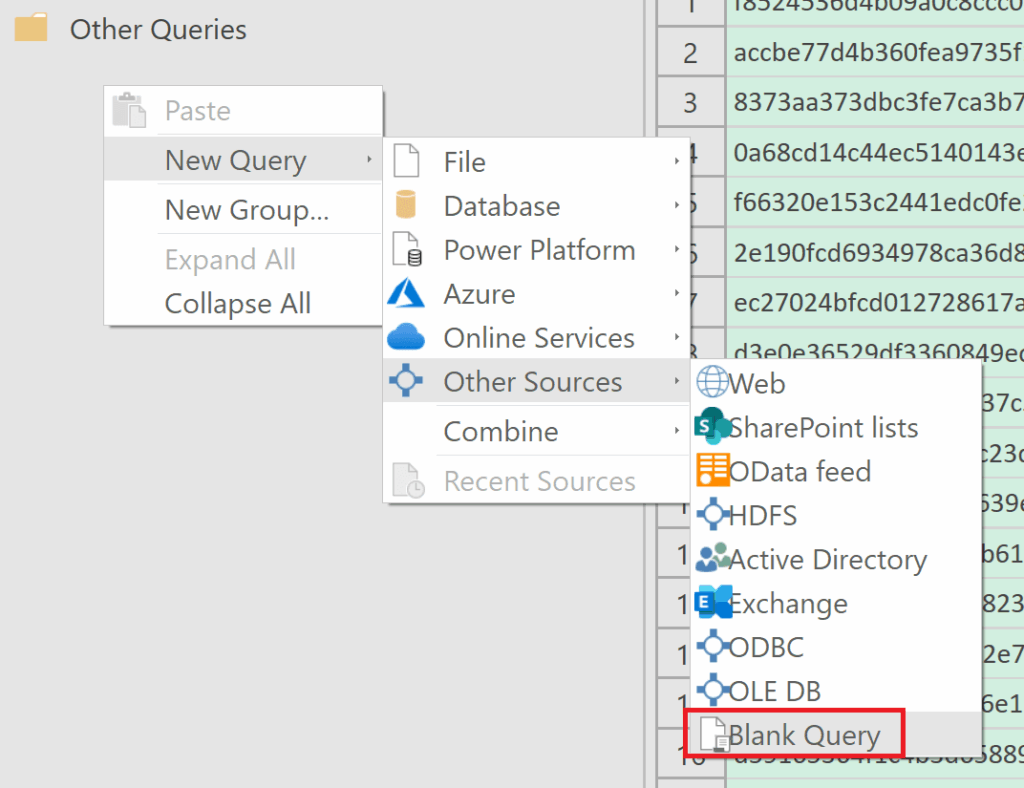
- Firstly, create a 'Blank Query’ in Power Query. (Yes, it’s as simple as it sounds (see below screenshot)!)
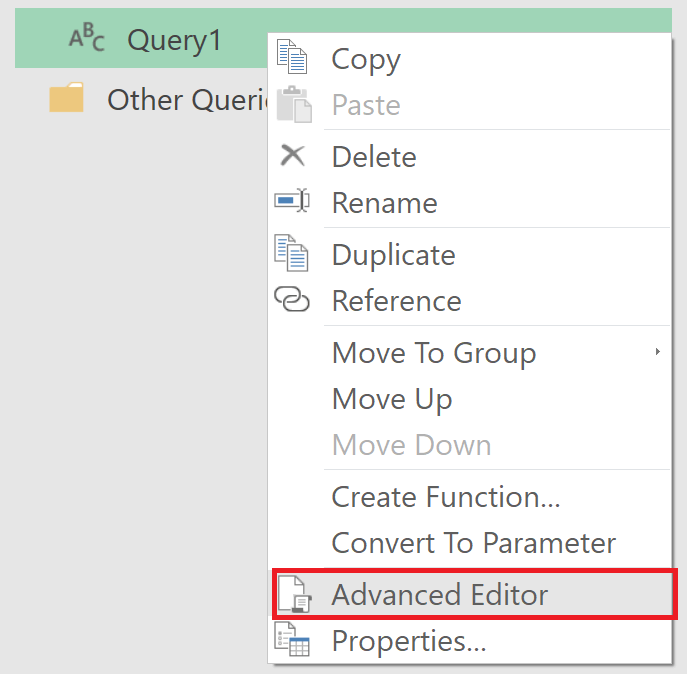
- After that, go to the 'Advanced Editor’.
- Finally, copy and paste the code snippet below in 'Blank Query’. Adjust it ever so slightly to set your target folders.
let
// Import data from folder (use your folder path)
Source = Folder.Files("C:\Users\plesn\Desktop\Flats"),

// Filter for extension csv
#"Filtered Rows1" = Table.SelectRows(Source, each Text.Contains([Extension], "csv")),

// Convert binary content of CSV files into tables
#"Added Custom" = Table.AddColumn(#"Filtered Rows1", "GetData", each Csv.Document([Content])),

// Skip error files and remove not needed columns
#"Removed Errors" = Table.RemoveRowsWithErrors(#"Added Custom", {"GetData"}),
#"Removed Other Columns" = Table.SelectColumns(#"Removed Errors",{"GetData"}),

// Automatically detect and expand all columns from the CSV files
#"Expanded GetData" = Table.ExpandTableColumn(#"Removed Other Columns", "GetData", Table.ColumnNames(#"Removed Other Columns"[GetData]{0}), Table.ColumnNames(#"Removed Other Columns"[GetData]{0})),

// Promote headers (if needed)
#"Promoted Headers" = Table.PromoteHeaders(#"Expanded GetData", [PromoteAllScalars=true])

in
#"Promoted Headers"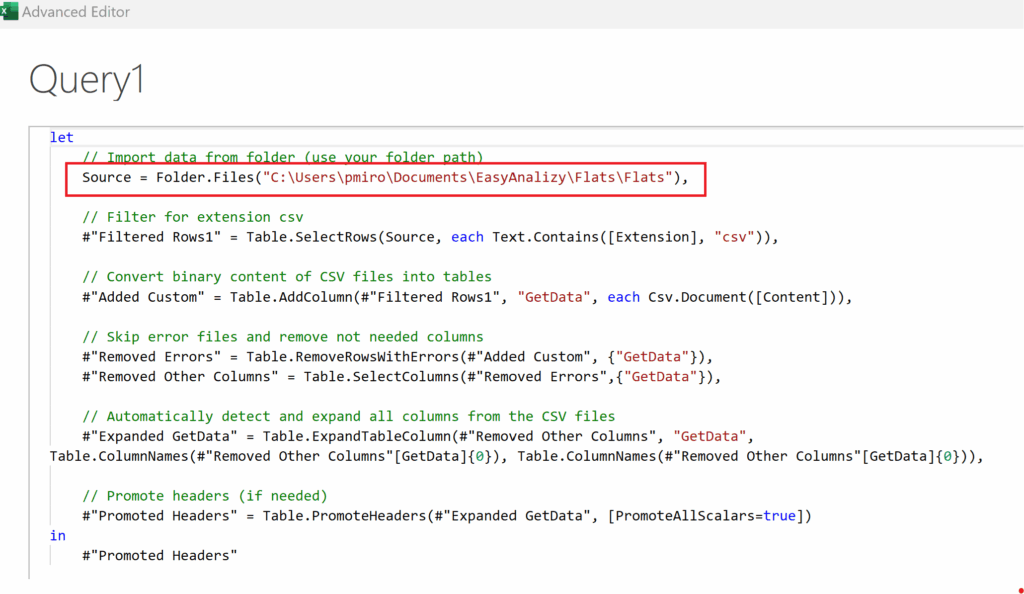
That’s it! ✨ Just a couple of tweaks, and you’ve avoided a heap of clutter and confusion. 🎉 Say goodbye to endless loading times and endless file identification — your organized, headache-free data process starts now. 🥳